How can we help you?
Find answers, explore helpful guides or get in touch with our support team.
BROWSE HELP TOPICS
Frequently Asked Questions
Find quick answers to the most common questions about Adprove
Getting Started
Set up your account and workspace.
Adprove is a creative collaboration and approval platform that helps teams, agencies, and clients review, comment on, and approve creative work in one place.
Adprove supports HTML5 banners, images, and videos. Additional formats, including audio and PDF, are planned for the future.
No. Adprove is web-based, so you can access your workspace directly from your browser without installing any software.
Yes! You can explore Adprove during a free trial before deciding whether to subscribe.
Workspaces & folders
Organize your creative projects.
A workspace is your central place for managing creatives, folders, team members. It helps keep everything organized and accessible.
You can use separate workspaces to organize different teams, clients, or projects, keeping their creatives and collaboration independent.
Absolutely! Create folders and subfolders to organize your creatives by client, campaign, project, or whatever works best for your team.
You can organize your creatives into different folders to keep your projects structured and easy to navigate.
Yes. Folder permissions allow you to control which members can access specific folders and their contents.
Uploads & files
Upload and manage creative assets.
If you don't have any folders in your workspace yet then create a new folder and start uploading your creatives into it. If you already have a folder, then open it in your workspace and use the upload option to add your creatives. Once uploaded, they're ready to preview, share, and review.
Adprove supports HTML5 banners, images, and videos. Support for additional formats, such as PDF and audio, is planned for the future.
Adprove is designed to make uploading creatives quick and convenient, helping you manage multiple assets without unnecessary steps.
Yes! You can preview your uploaded creatives directly in Adprove before sharing them with your team or clients.
Not yet! We are working on it.
Sharing & feedback
Share previews and manage comments.
Absolutely! Share your creatives with clients using preview links or invite them to collaborate directly in your workspace.
Clients can access creatives through shared preview links without needing to join your workspace.
Team members and previewers can leave comments directly on creatives, keeping feedback organized and making collaboration easier.
Yes! Previewers can review and approve creatives directly in Adprove, helping you move projects forward without lengthy email conversations.
Yes. You can activate or deactivate preview links whenever needed, giving you control over when your creatives are accessible.
Adprove helps you stay informed about collaboration activity so you can keep track of feedback and updates.
Team & permissions
Invite people and control access.
Open your workspace's member management settings, enter their email address, and assign a role. They'll receive an invitation to join.
Adprove offers different roles, including Admin, Manager, and Limited Manager. Each role comes with permissions designed for different responsibilities.
Yes. Workspace owner and admins can manage members and update their roles as responsibilities change.
Yes! Folder-level permissions allow you to limit access to specific folders, ensuring members only see the projects relevant to them.
No. Previewers don't need their own paid subscription to collaborate with your team in Adprove.
Yes. Authorized workspace administrators such as Owner and Admins can manage members and remove access when someone no longer needs to collaborate.
Billing & subscriptions
Manage plans and payments.
You can manage your subscription directly from your workspace's billing settings, where you'll find your plan and payment information.
When your free trial ends, you'll need an active subscription to continue using your workspace. If you don't subscribe, your workspace will be paused.
You can manage your subscription plan through your workspace's plans settings.
Yes. You can cancel your subscription through your billing settings without needing to contact support.
Open your workspace's billing settings to manage and update your payment information.
If a payment issue remains unresolved, your workspace may be paused until the billing issue is resolved.
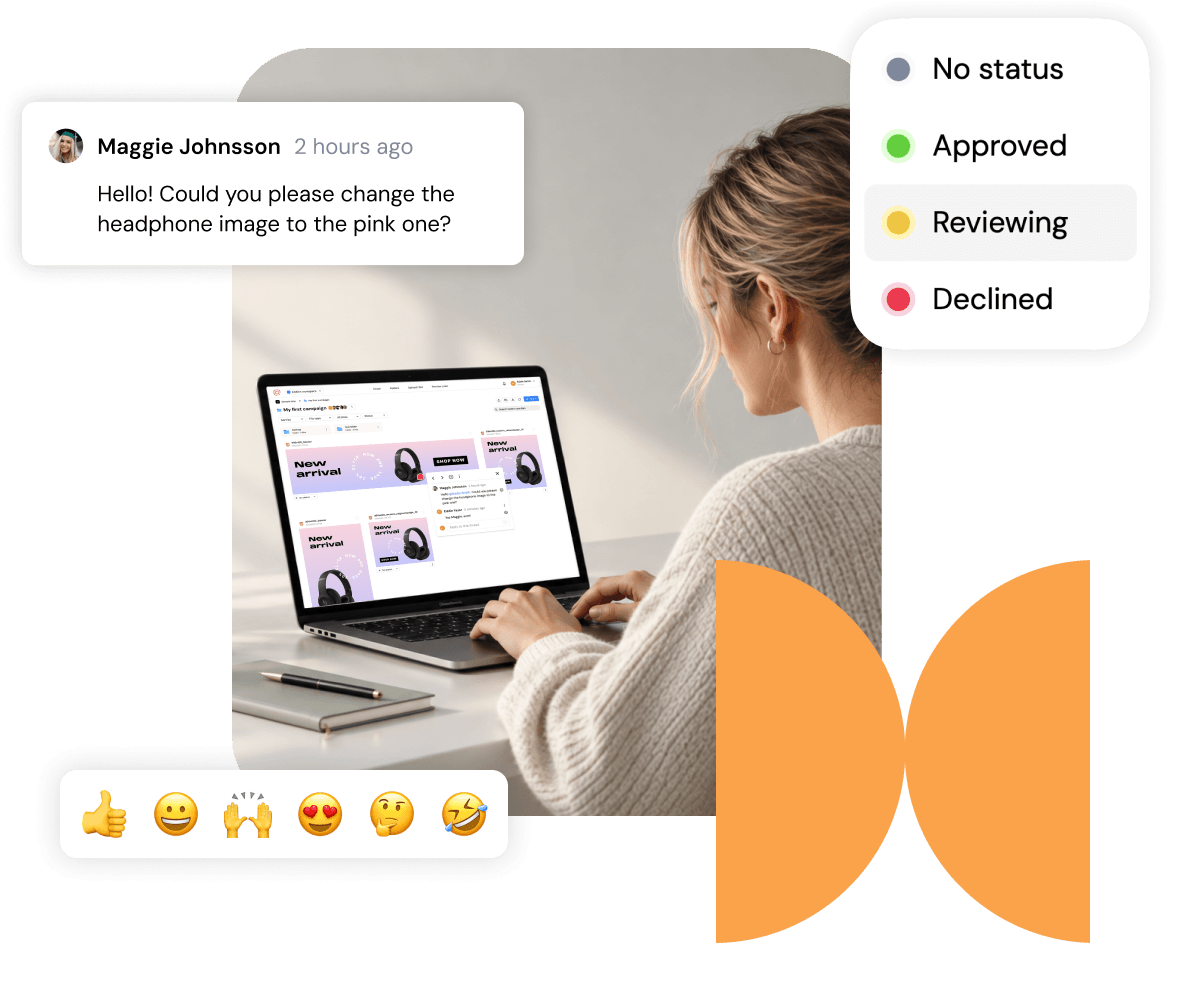
Ready to make creative approvals easier?
Bring your team, clients and creative projects together with Adprove.
No credit card required.
